Help, Information & FAQs
Help
Avoid losing your data
As an App or Webpage
Getting started
Entering scores
Correcting scores
Get Scorecard
Get Captain's Log
Start a new game
Information
About Skittle Scorer
Privacy Policy
FAQs
Get as an App?
Poor or no internet?
Short of players?
Player skips a turn?
Triggering of points?
View on a large TV?
Avoid losing your data
When Skittle Scorer is in use, avoid...
...powering off your device
...minimising*, closing or refreshing the App or Webpage
...navigating to another Webpage (in the same tab)
...allowing any system or browser updates
...letting your device battery run out - ensure it is adequately charged, or that you can charge it at the venue
* minimising causes the App to run in the background - some small devices might cause erasure of your data to save on internal memory usage or battery power
Keep your data on-screen
Temporarily increase the screen timeout period to avoid your device entering "sleep mode". A 30 minutes timeout period is advisable. You shouldn't lose your data if your device does happen to enter "sleep mode", but avoid long periods of "sleep mode". Also, be very careful not to accidentally refresh the App or Webpage when awakening it.
As an App or Webpage
Skittle Scorer can be used as either an App (Progressive Web App), or, a Webpage. Using as an App is recommended - particularly for smartphones, because you will benefit from getting the most out of the available screen space on your device - see FAQ for install guidance.
Getting started
Enter the match details into the coloured panel: Competition - eg: K O Cup Round 1, League, ...etc, Home & Away team names, (Venue & Date are pre-filled but you can alter them if needs be)
Then, enter some player names - a player's score cannot be entered if the player's name is empty.
Tip: you can type any text as all lowercase for speed - it will automatically be capitalized where necessary.
If you need to edit or change a player's name: ensure you do it before entering their last score!.
Entering scores
Tip: you can tap the Hide panel button for a better display when entering the scores.
To enter a score, simply click/tap on the relevant cell where you want to insert a score. A keypad will pop up, where you can enter any score from ✻(0) to 9, 9 spare to 27 spare.
And, for front pin first games, lower value spares 1 to 8 are available.
Erase & Abort buttons are included should you need them.
Correcting scores
The 3 scenarios:
[1] You clicked/tapped on the wrong cell - if you haven't yet entered a score, just click the Abort button.
[2] You entered a score into the wrong cell which was previously empty - click/tap the same cell, then click/tap the Erase button.
[3] You entered a score into the wrong cell which was not previously empty - click/tap the same cell, then re-enter the score which was previously there.
Get Scorecard
[1] From the menu: click/tap the Scorecard button. Skittle Scorer will advise if anything is missing and halt the process (because there's no point in acquiring an incomplete scorecard).
If all is okay, you'll be able to proceed.
[2] Enter the names of both team captains, then click/tap the Save / Print button. Your browser's print dialogue box opens enabling you to save (or print) the Scorecard.
Tip: choose the save (as a PDF) option, then (later on), email the scorecard to your Skittles Coordinator.
Get Captain's Log
[1] From the menu: click/tap the Captain's Log button.
[2] Then click/tap the Save / Print button. Your browser's print dialogue box opens enabling you to save (or print) the Captain's Log.
Tip: saving the Captain's Log can be extremely useful in the event of a match being abandoned part way through - showing who played when, and their scores etc., up to the point of abandonment.
Start a new game
[1] From the menu: click/tap the New game button.
[2] The "Are you sure?" dialogue box will pop up. Please read the contents before you click/tap either the Escape button or the Clear all button.
About Skittle Scorer
Skittle Scorer is primarily designed to be used on small devices such as smartphones & tablets, but works just as well on PCs, laptops, notebooks & smart TVs.
You only need an initial connection to the internet to load Skittle Scorer. (Once loaded, you would only then need a connection again to: email the scorecard, or start a new game).
Privacy Policy
Skittle Scorer does not store or transmit any of the data that you enter. It remains on your device only (until of course, you email the scorecard). Refreshing or closing Skittle Scorer as either the App or as the Webpage will erase your data .
Skittle Scorer does not use cookies, but does make use of a single (empty) service worker - needed by some web browsers simply to recognise that an App is available.
FAQ: Get as an App?
Various operating systems & web browsers differ as to how a Progressive Web App (PWA) like Skittle Scorer is installed.
For smartphones: open your browser's menu (usually accessed by tapping on 3 dots or 3 horizontal bars). Next, look for wording similar to "Install app" or "Install as an app"
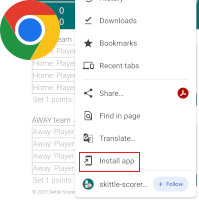
If you can't find any similar wording, then look for "Add to home screen" or "Add page to", and follow the options available to you. Note: on some devices just adding it to the home screen might not give you "the full App experience", but it should come close.
For larger devices: look in your browser's address bar for an icon like examples below and tap/click it:
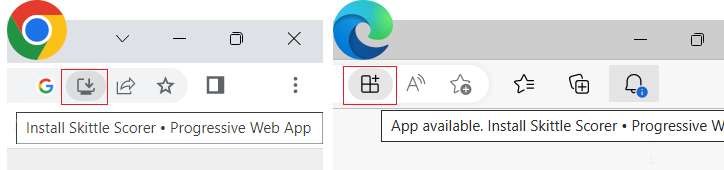
If there is no icon, follow the guidance given above for smartphones. Not all web browsers can (yet) install PWAs.
FAQ: Poor or no internet?
If there is a poor or non-existant Wi-Fi/3G/4G/5G in the skittles alley, try other rooms within the venue. If your device supports 3G/4G/5G, you could also try to locate a signal from just outside the venue.
One option, is to load Skittle Scorer before you set off to the venue (at your home for example), then keep your device on until you reach the venue.
FAQ: Short of players?
For each player short: Enter "no player" (or similar) where you would normally enter the player's name.
If your league permits the use of lowest score(s) on the board: then for each player short, enter scores that give them a total score equal to the lowest score(s) on the board.
If your league does not permit the use of lowest score(s): then for each player short enter all scores as ✻(0), giving them a total score of 0.
FAQ: Player skips a turn?
Simply leave such a player's score as blank, and continue to score for the next player. Skittle Scorer might temporarily become "out of sync" but will instantly catch up once a score is entered for the player that skipped a turn.
FAQ: Triggering of points?
The leg points are triggered to display when a score is entered into the bottom column cell on the home team screen and the corresponding bottom column cell on the away team screen (For each column: won=2, tied=1, lost=0. Home total + Away total=12).
The match points are triggered to be displayed when a score is entered for the last turn of the last player in the away team screen (won=10, tied=5, lost=0. Home total + Away total=10).
The scorecard shows leg points & match points as a combined sum, for each team. (Home total + Away total=22)
FAQ: View on a large TV?
If a large screen TV is available in the alley, and the venue permits usage, then Skittle Scorer as an App or Webpage could be displayed on it - enabling all persons in the alley to view their scores and progress - replacing the need for any traditional scoreboard.
This can be achieved with either an HDMI cable connection (your device to the TV), or, by the use of a product like Chromecast (or similar) if a stable Wi-Fi connection is available. (The TV itself does not need a Wi-Fi connection). Smartphone/tablet users should use their device in landscape mode to enable the best possible display on the TV.
© 2026 Skittle Scorer
 Scorecard generated by Skittle Scorer • Spare scores are displayed in red